
ELLIO IP Blocklist for Check Point NGFW: 3 million unwanted connections blocked in 45 days

Follow this step-by-step guide to set up IP blocking on Check Point firewalls using ELLIO Blocklists, enhancing your network protection. This tutorial provides a quick and easy way to get ELLIO up and running on your Check Point NGFW within minutes, including how to test it using free trial ...
Discover why adding advancedELLIO IP Blocklist MAXto your next-gen Check Point firewall is a great way to boost its protection, and how easy it is to set up. This article also gives you a simple, step-by-step guide to get ELLIO running on your Check Point NGFW in just a few minutes.
In this article, you’ll find:
- WhatELLIO Blocklistis and why it’s beneficial for Check Point firewalls.
- A practical installation tutorialfor setting up an IP blacklist on Check Point.
- How to get a free trialto test ELLIO: Threat Lists MAX.
- Access to the ELLIO free community IP blocklist.
Why is ELLIO IP blocking beneficial for Check Point firewalls
Let’s look at some stats from a recent ELLIO customer story that showcase how ELLIO has significantly enhanced the protective capabilities of Check Point’s next-gen firewalls over just 45 days:
- ELLIO blocked over 3 million unwanted connections at the firewall level.
- After activating ELLIO, threat detections within Check Point’s New Anti-Virus blade increased by more than 800%.
ELLIO blocking led to 800% increase in Check Point detections
These results are no coincidence.ELLIOoffers one of the largest and most dynamic blocklists, with a 10% rotation of IP addresses. ItsELLIO: Threat List MAXincludes between 175,000 and 450,000 entities at any given time, far outpacing competitors. While other providers boast about updates every hour or 15 minutes, ELLIO refreshes its IP feeds every minute. Current active malicious IP addresses are identified and analyzed through the ELLIO’s global network of internet sensors and honeypots, with updates delivered to feeds in under one second.
ELLIO offers following blocklists:
- ELLIO: Threat List MAX: Ultimate IP blocking at the firewall level Covering 175,000 to 400,000 entities with updates every minute, easily compatible with Chek Point and other next-gen firewalls. Along with the ELLIO: Threat List, you also gain access to theELLIO Blocklist Management Platformfor managing all blocklists across firewall vendors.
- ELLIO free community blocklistfor homelabers, cybersecurity enthusiasts, and non-commercial individual use only.
How to set up an external IP blocklist on Check Point firewall.
Select most suitable option
There are two options of setting up ELLIO IP blocklist on Check Point appliance. If you have SmartConsole and your appliances are version R81.20 or higher, we recommend using the SmartConsole option. Otherwise, use the CLI option. If you have a cluster, you need to run the commands on each member of the cluster.
Option 1: Setup of IP blocklist using CLI
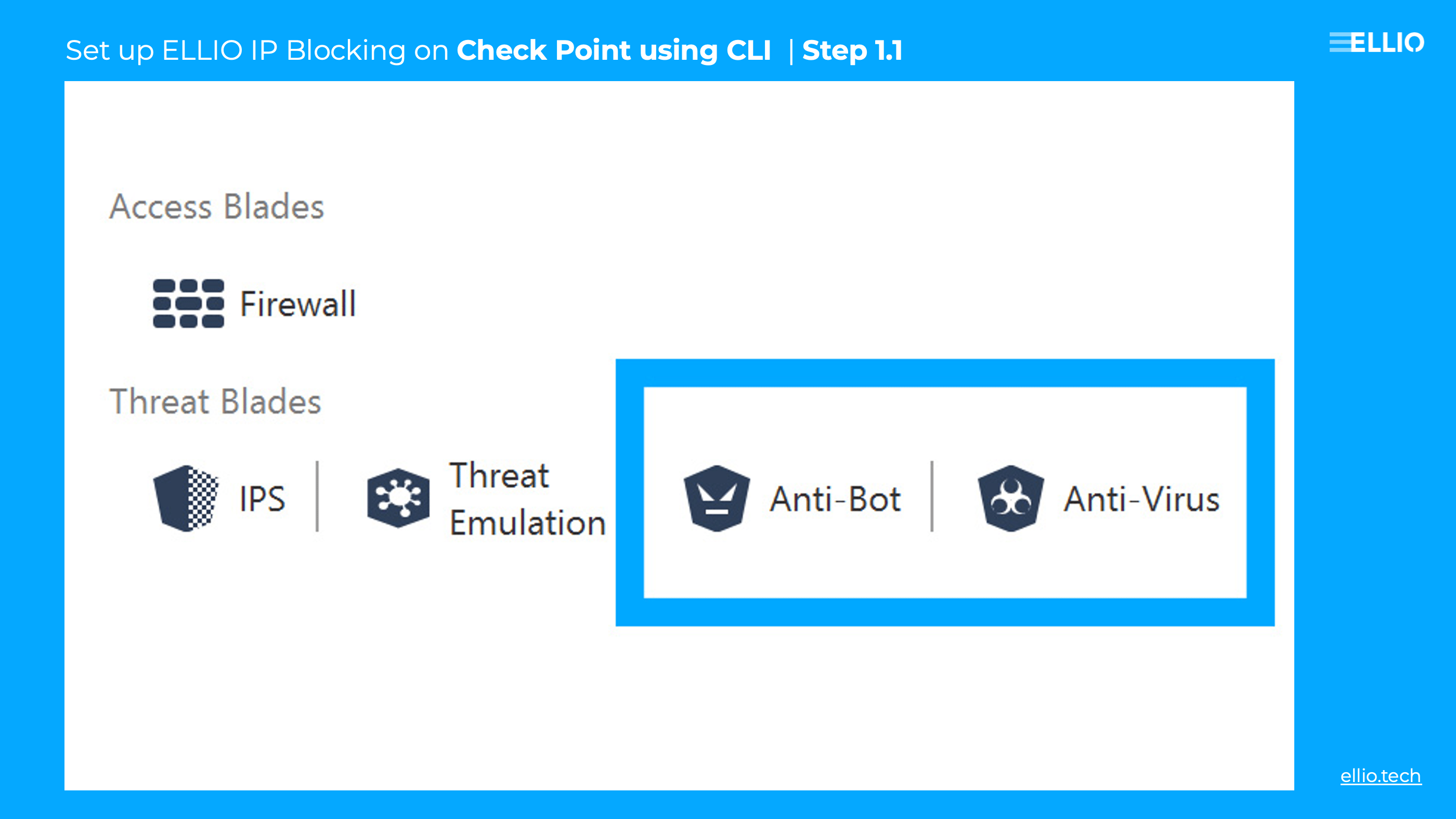
Step 1.1: This section of the tutorial guides you through deploying the ELLIO Blocklist to a Check Point appliance using the Custom Intelligence Feeds feature of the “Anti-bot” and/or “Anti-Virus” blades.
Before you begin, ensure that the “Anti-bot” and/or “Anti-Virus” blades are activated on the appliance where you plan to deploy the Firewall Threat List. This step is crucial for the deployment process.
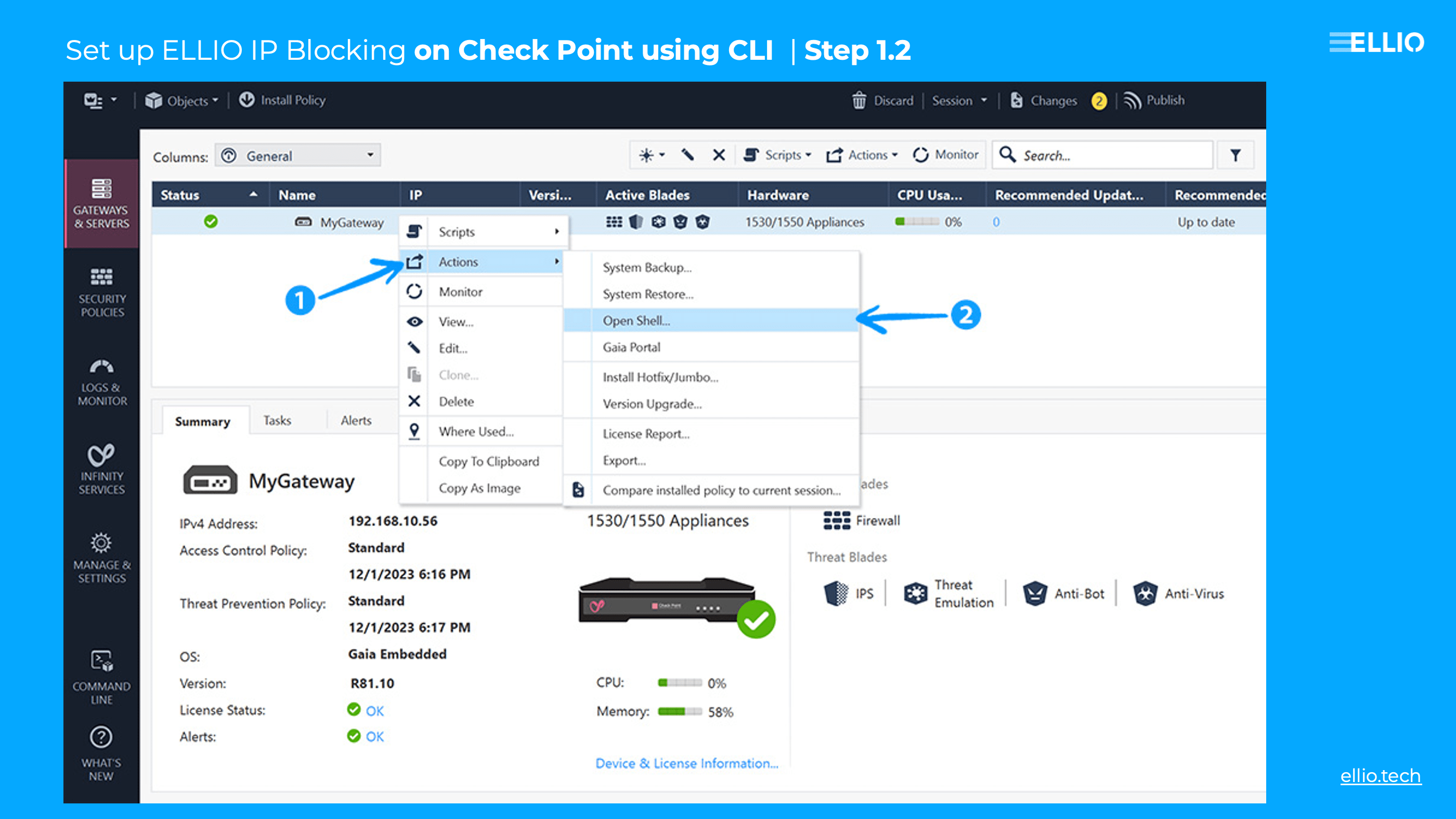
Step 1.2: Log in to the Check Point appliance using either SSH or the “Shell” option in SmartConsole. For SSH login, use the credentials provided during the initial setup. If you’re using SmartConsole, select the ‘Shell’ option from the main menu.
Step 1.3: Once logged in, deploy the ELLIO: Firewall Threat List by executing the following command:
ioc_feeds set ELLIO --resource URL_OF_YOUR_DEPLOYMENT --transport https --action prevent --state trueReplace URL_OF_YOUR_DEPLOYMENT with the actual URL of your deployment. Watch the video in Step 1.5 below.
Step 1.4: To verify the IoC (Indicator of Compromise) feeds currently in use, run:
ioc_feeds showThis command will display a list of all active IoC feeds, allowing you to confirm the successful deployment of the ELLIO blacklist. Watch the video in Step 1.5 below.
Step 1.5: To ensure your appliance fetches the latest feeds, set a schedule by running:
ioc_feeds sched 300This command sets the feed update schedule to every 5 minutes (300 seconds). You can adjust the schedule by replacing 300 with your preferred number of seconds.
Step 1.6: After completing these steps, your Check Point appliance will be regularly updated with the latest ELLIO Threat List, ensuring enhanced security by keeping the appliance informed of new threats. For further customization or troubleshooting, consult the Check Point appliance documentation or contact support.
Congrats! You’re all set! Enjoy enhanced protection for your Check Point firewall with the ELLIO Threat List for effective IP blocking.
Option 2: Setup of an external IP Blocklist using SmartConsole.
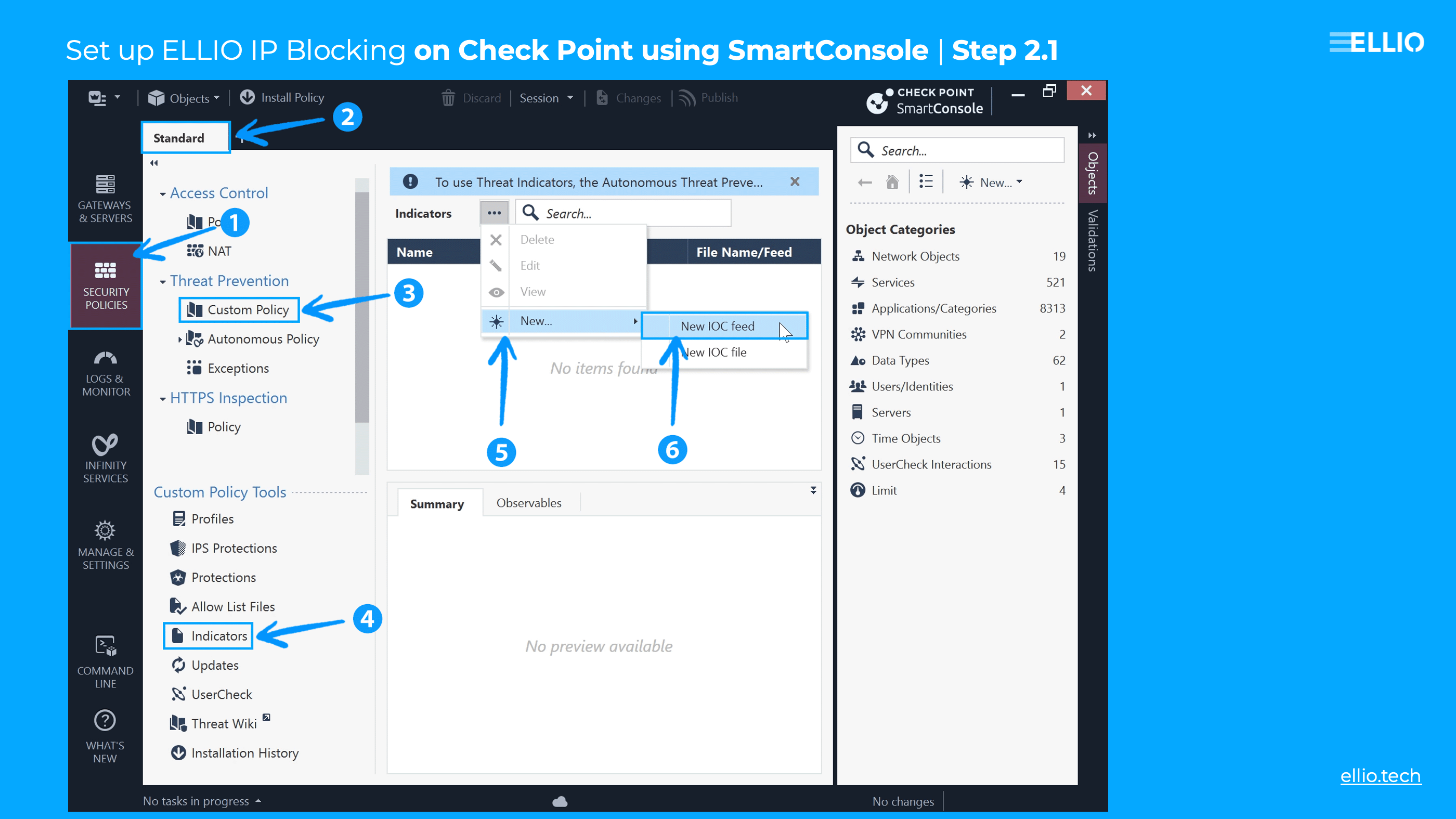
Step 2.1: In the SmartConsole, navigate to SECURITY POLICIES. Select the policy you want to modify, then go to Threat Prevention and choose Custom Policy. Under Custom Policy Tools, select Indicators, click on New, and finally choose New IOC Feed.
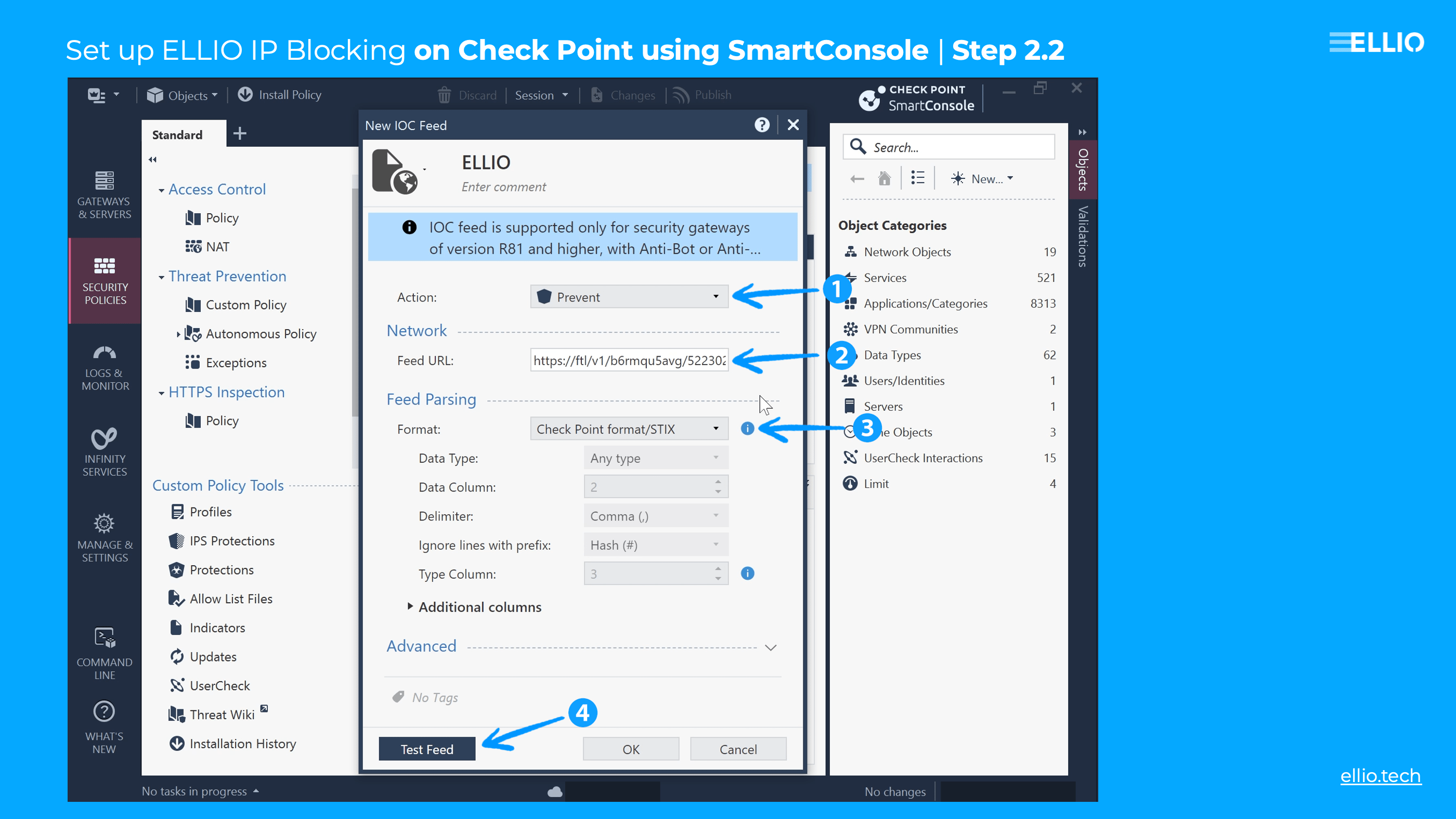
Step 2.2: In the New IOC Feed window, under Action, select Prevent. Paste the ELLIO Threat List link into the Feed URL field, and keep Check Point Format/STIX as the format. Finally, click Test Feed.
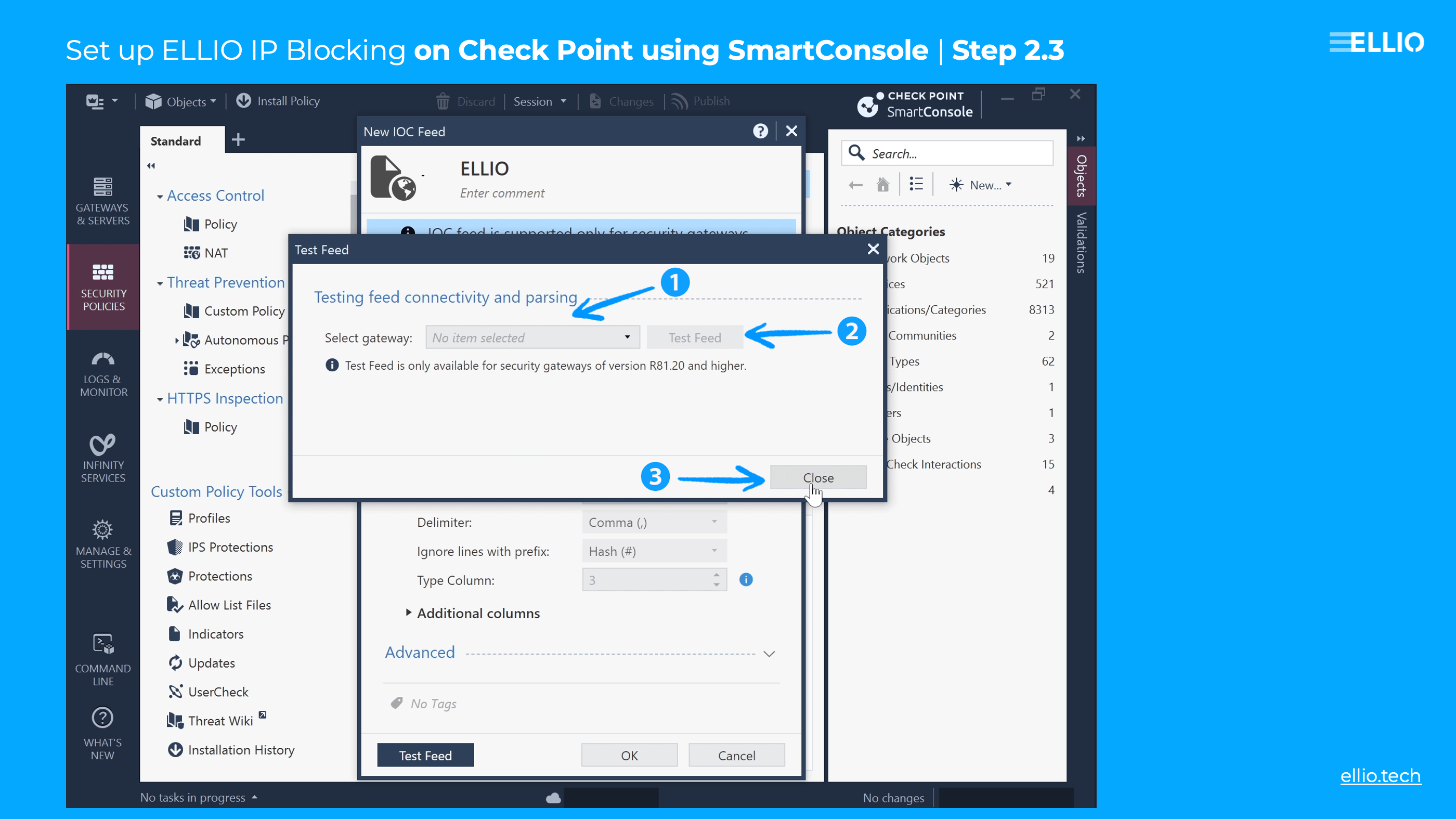
Step 2.3: In the Test Feed window, you select a gateway to test the feed. Note that this option is only available for security gateways running version R81.20 or higher. You may choose to test the feed or skip the test. Once done, click Close.
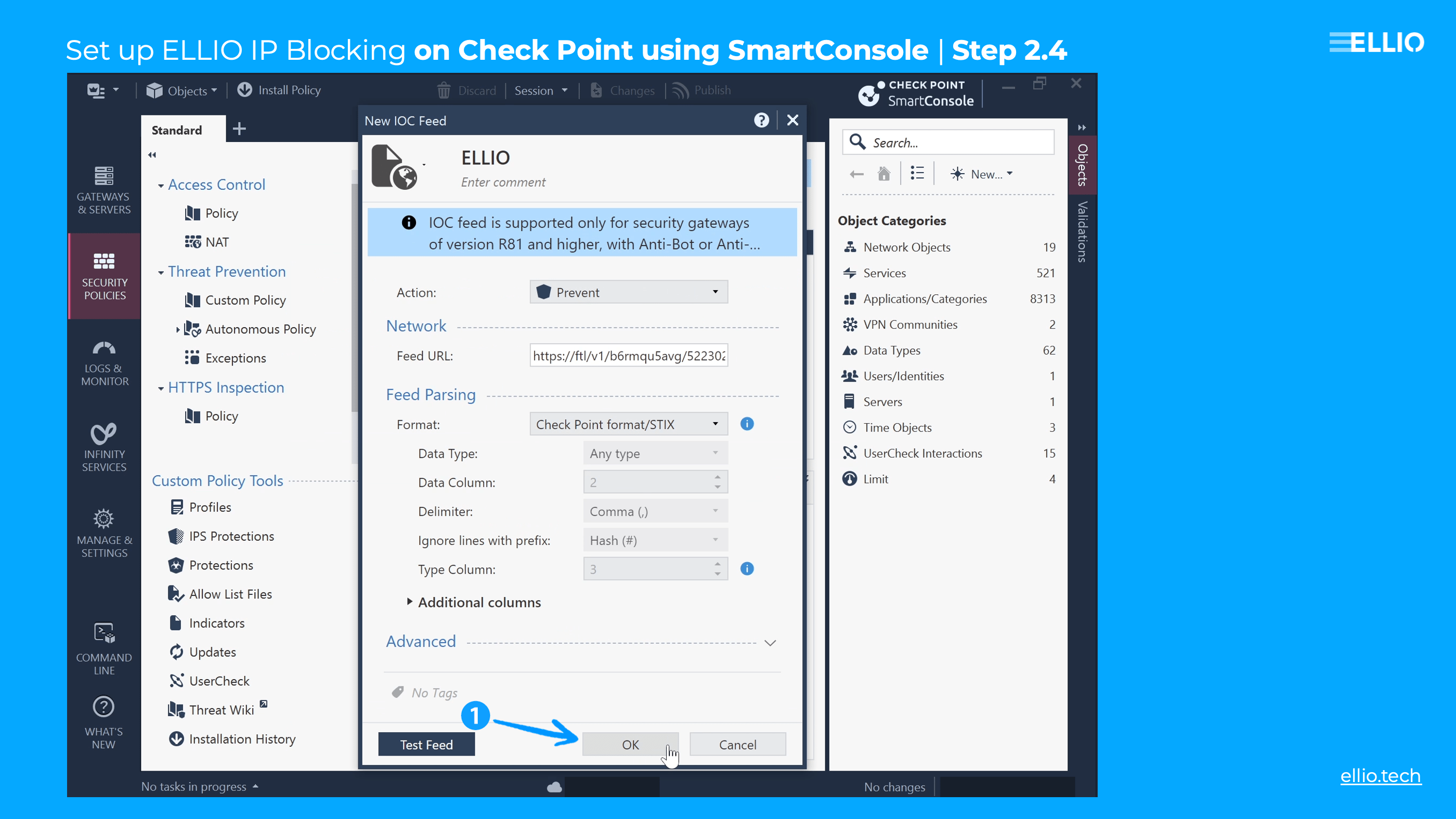
Step 2.4: In the New IOC Feedwindow, click OK.
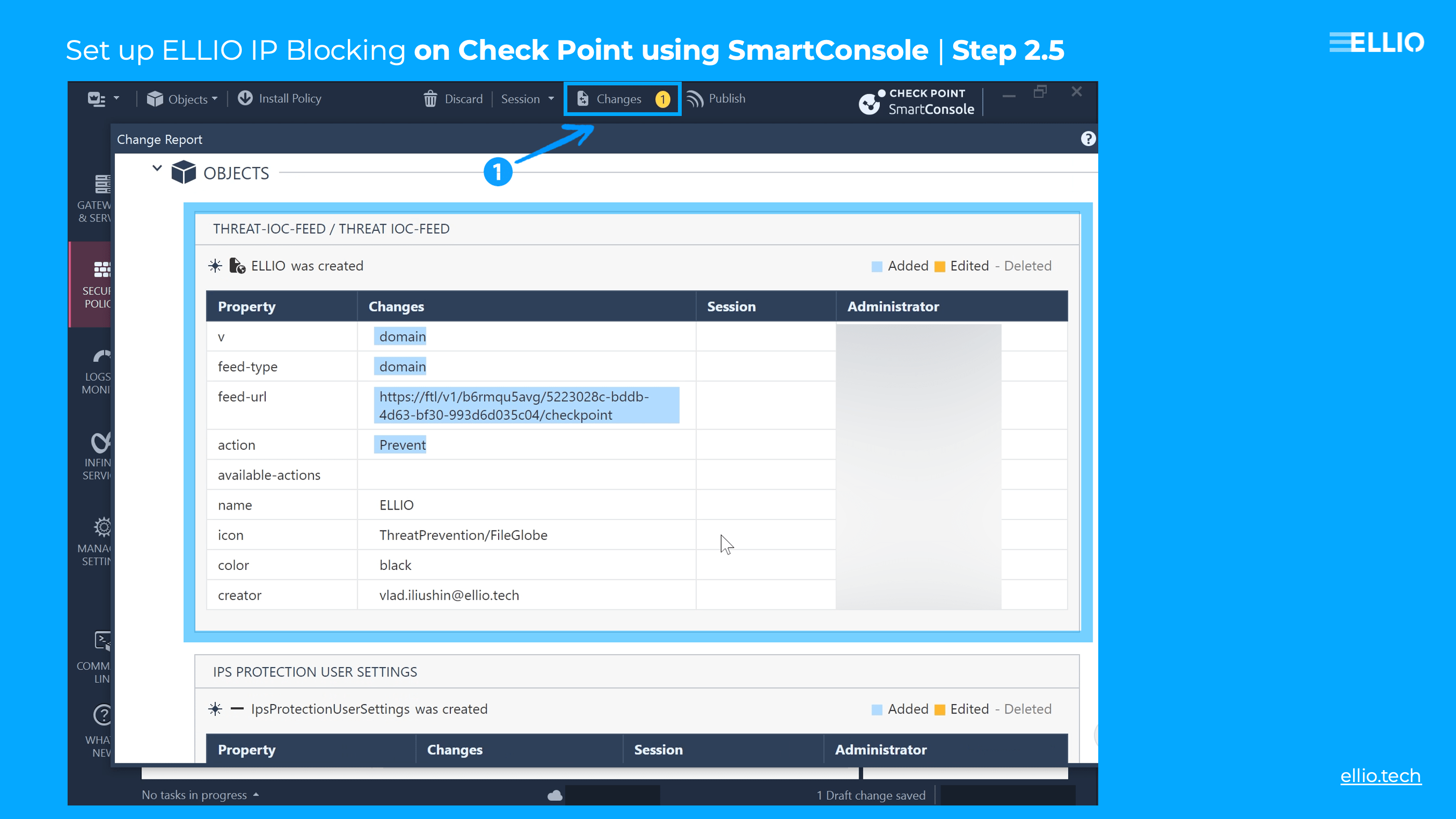
Step 2.5: At the top of SmartConsole, click on Changes. Scroll down to OBJECTS, and under THREAT-IOC-FEED, you should see that the ELLIO feed is being created.
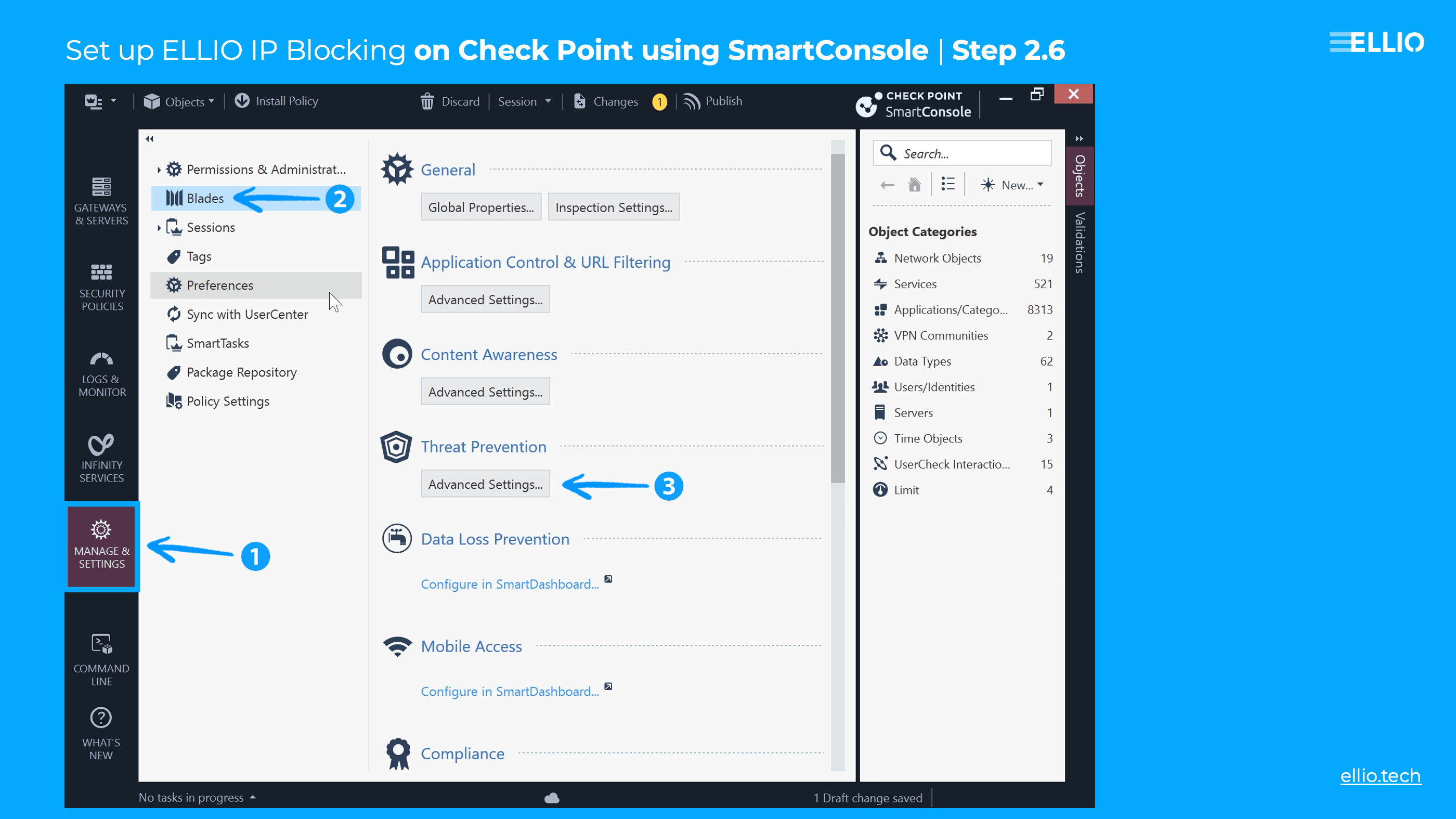
Step 2.6: To update the frequency with which your Check Point appliance fetches the feed, go to MANAGE & SETTINGS in SmartConsole. Select Blades, and under the Threat Prevention blade, click on Advanced Settings.
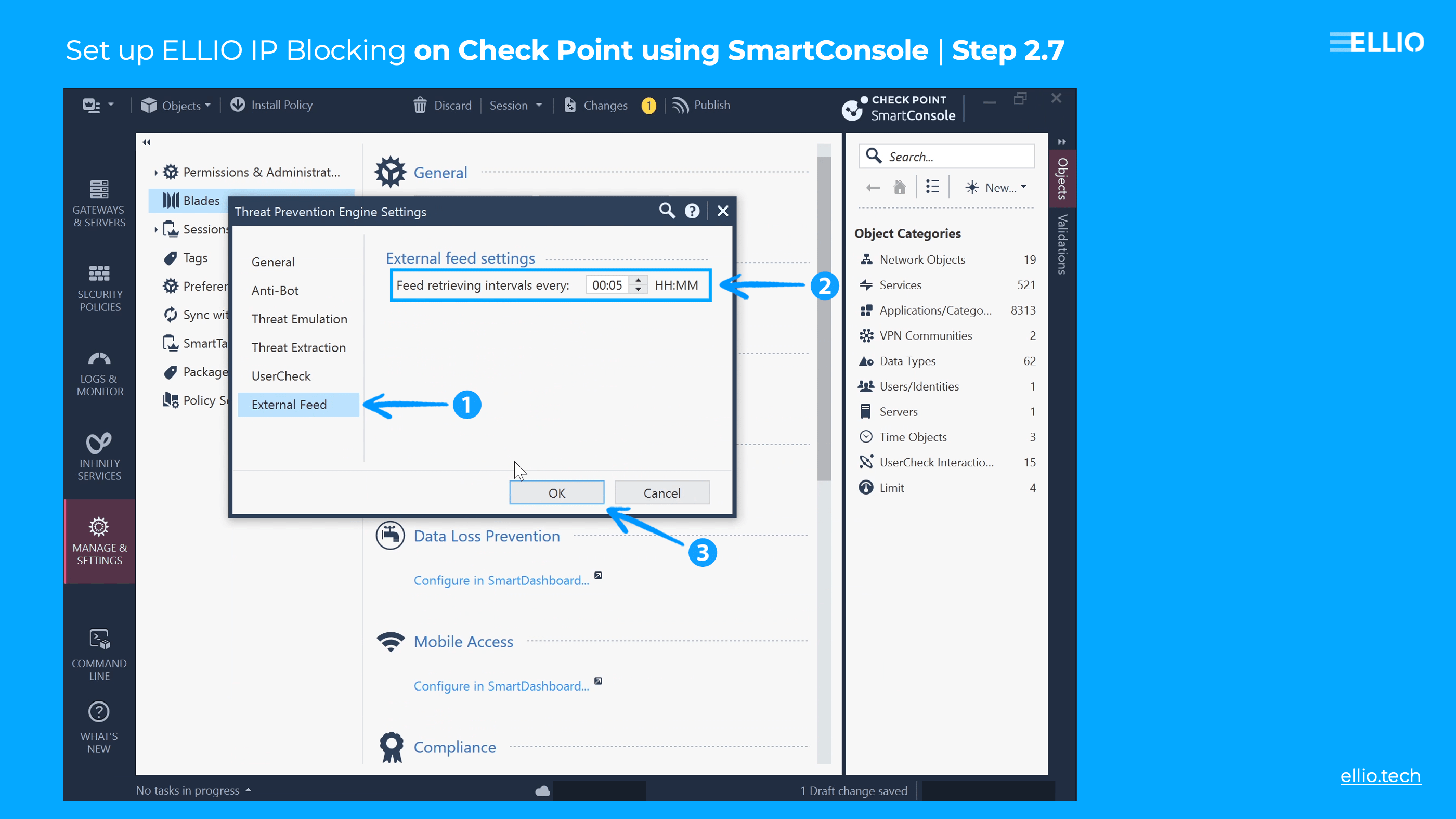
Step 2.7.: In Threat Prevention Engine Settings, select the External Feed menu. Set the Feed Retrieval Interval to the desired frequency (most users opt for a 5-minute interval). Finally, click OK.
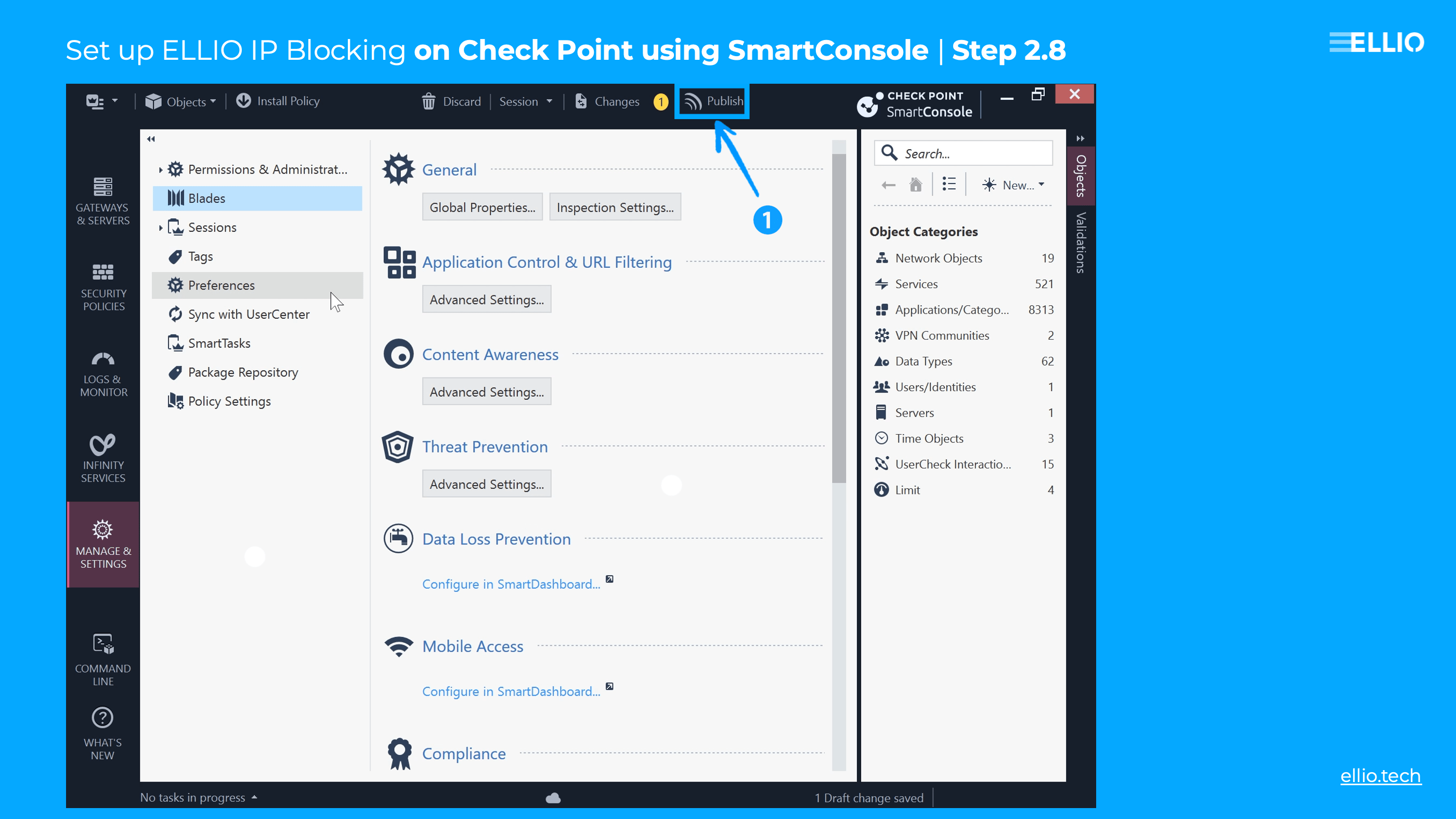
Step 2.8: Once you’re ready, click Publish in the top right corner of SmartConsole. You’re all set! Enjoy enhanced protection for your Check Point firewall with the ELLIO Threat List for effective IP blocking.
Try ELLIO IP blocklists with free trials
Visit the ELLIO Platfrom - Blocklist Automation, and create your own custom blocklist that never blocks something it should not.
Did you find this tutorial helpful?
Did this guide help you set up IP blocking on Check Point easily? We hope so! Feel free to share it with your friends, colleagues, or community.
About ELLIO
ELLIO is a research-driven cybersecurity lab with a strong focus on mass exploitation and reconnaissance activity. ELLIO delivers IP-based threat intelligence, network fingerprints, and highly dynamic feeds for event prioritization and data enrichment across existing SIEM, SOAR, and other security tools. Beyond intelligence, ELLIO provides ultimate IP blocking for next-gen firewalls, a platform for centrally managing all multi-vendor blocklists and whitelists, and additional services such as network masking against scanners and eBPF-based filters that combine IP intelligence with modern network fingerprints to protect against active malicious and overly curious (promiscuous) traffic.
Enter the ELLIO Threat Platform and see mass exploitation and reconnaissance activity as they happen: https://platform.ellio.tech