
IP Blockling on FortiGate 7.2.0/7.4.0 using ELLIO

This article gives you a simple, step-by-step guide to set up an external IP blocklist and firewall rules on FortiGate 7.2.0/7.4.0. Discover why adding advanced ELLIO Blocklists to your FortiGate v. 7.2.0/7.4.0 is a great way to boost its protection, and how easy it is to set up.

Discover why adding advanced ELLIO Blocklists to your FortiGate v. 7.2.0/7.4.0 is a great way to boost its protection, and how easy it is to set up. This article gives you a simple, step-by-step guide to set up an external IP blocklist and firewall ruleson FortiGate 7.2.0/7.4.0.
In this article, you’ll find:
- A practical installation tutorial for setting up an IP blocking on FortiGate 7.2.0/7.4.0.
- What ELLIO Blocklist is and why it’s beneficial for next-gen firewalls incl. FortiGate.
- How to get a free trial to test ELLIO’s Threat Lists (MAX and ONE blocklists).
- Access to the ELLIO free community IP blocklist.
38M unwanted connection filtered out with ELLIO in 30 days
ELLIO: Threat List MAX is the largest and most dynamic external IP blocklist on the market, designed to provide reliable protection against active malicious IPs at the perimeter level. Featuring an average of 175,000 to 450,000 entities, ELLIO blocklists efficiently filter out mass exploitation attempts, automated bots, account takeovers, spambots, proxy traffic, fake account creation, and malicious Tor activity. They are automatically updated every minute or customized to your preferences.
Here are some stats from setting up ELLIO on your FortiGate firewall:
- More than 38 million unwanted connections were filtered out by ELLIO during 30 day period.
- Each dynamic ELLIO: Threat List MAX contained on average over 270.000 IP addresses during 30 day period..
- After activating ELLIO: Threat List MAX, the number of reported False Positives is zero.
How to set up an external IP blocklist and firewall rules on FortiGate 7.2.0/7.4.0
1. Setup of an external feed
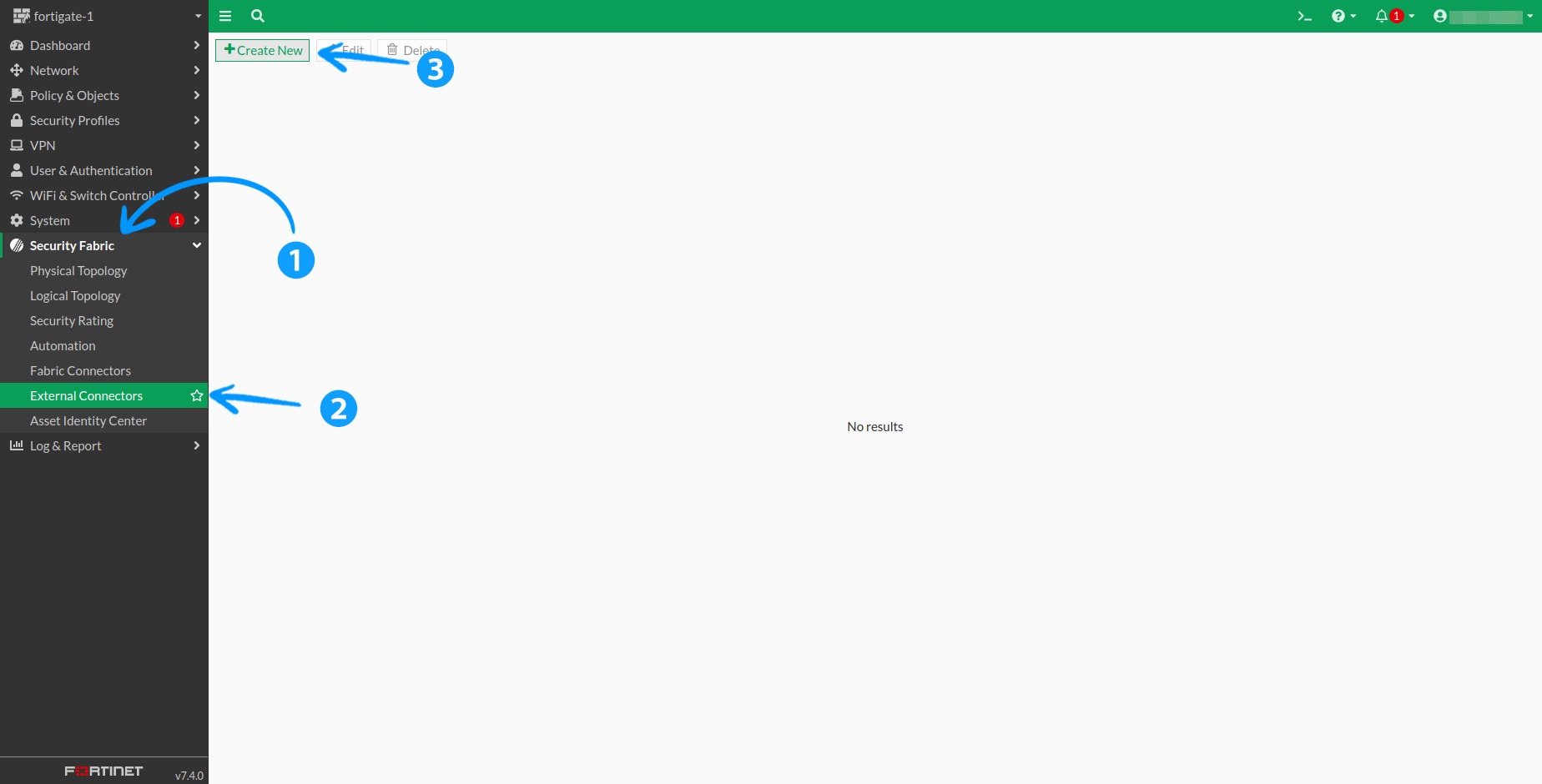
1.1 To add en external feed, go to Security Fabric > External Connectors in the menu and click the +Create New button.
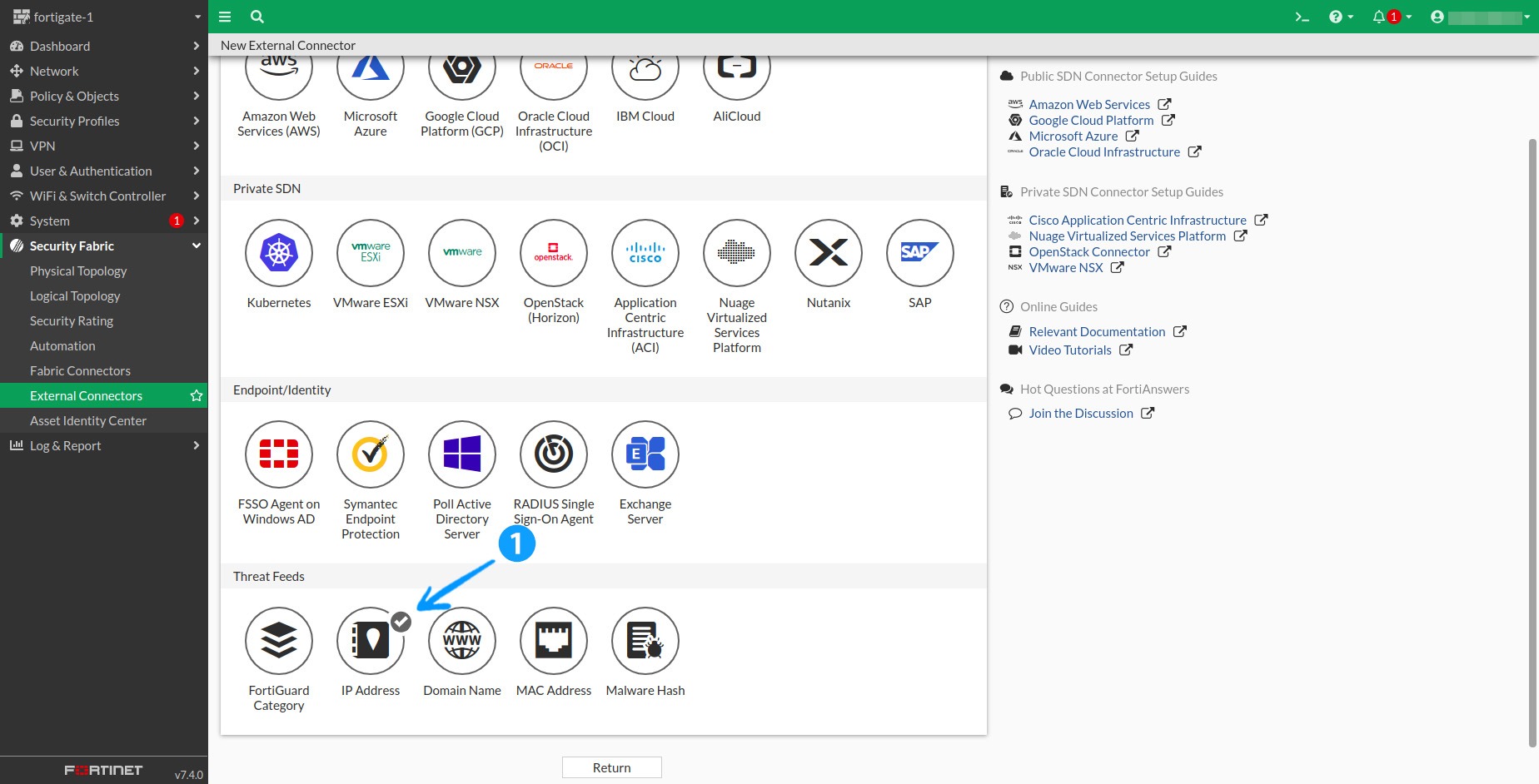
1.2 Scroll down to Threat Feeds and select IP Address.
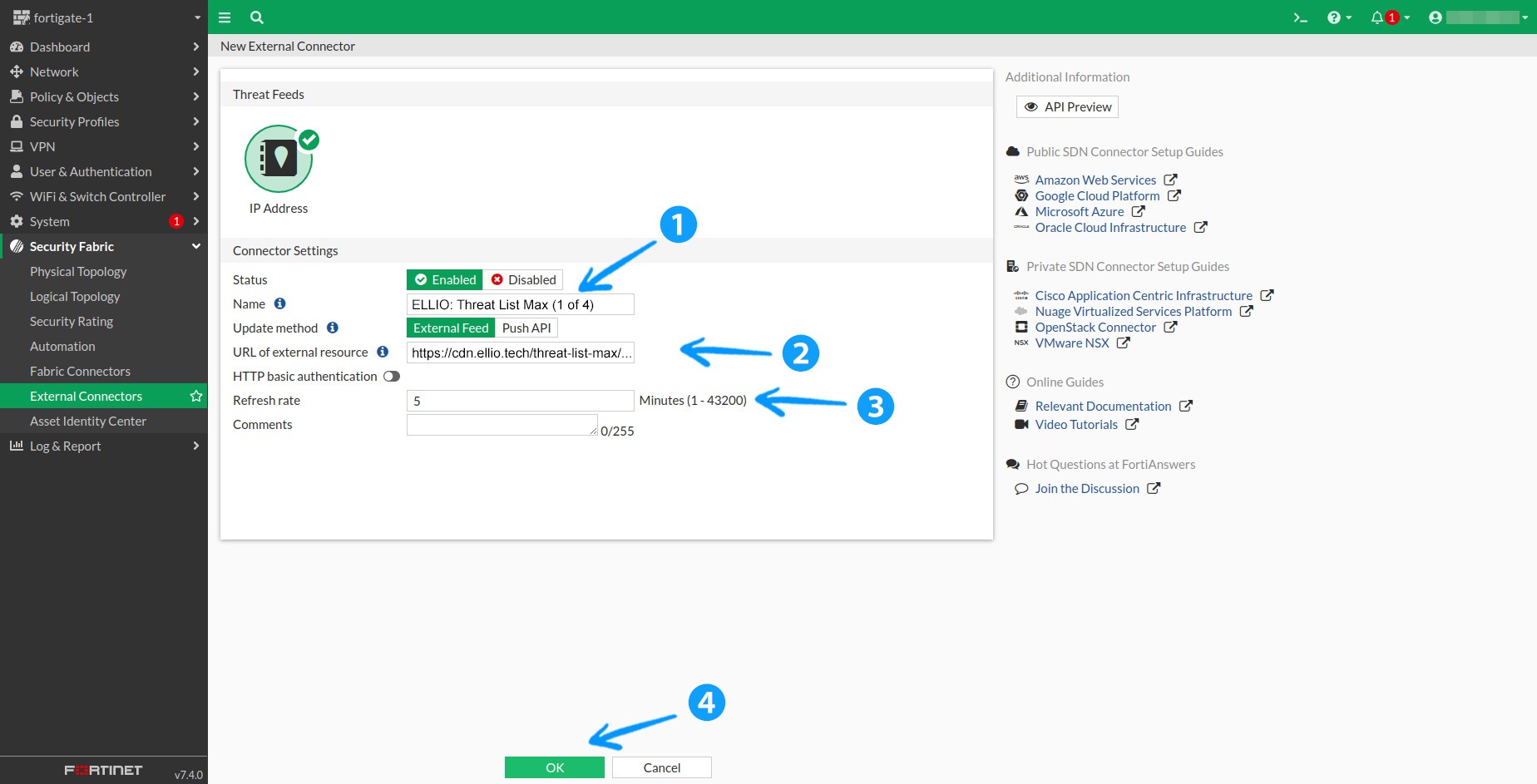
1.3 Fill in the Name field with something easily identifiable, e.g., ELLIO: Threat List MAX. Enter your link as the URL of the external resource, disable HTTP Basic Authentication, and set the Refresh Rate according to your subscription tier. Finally, click OK.
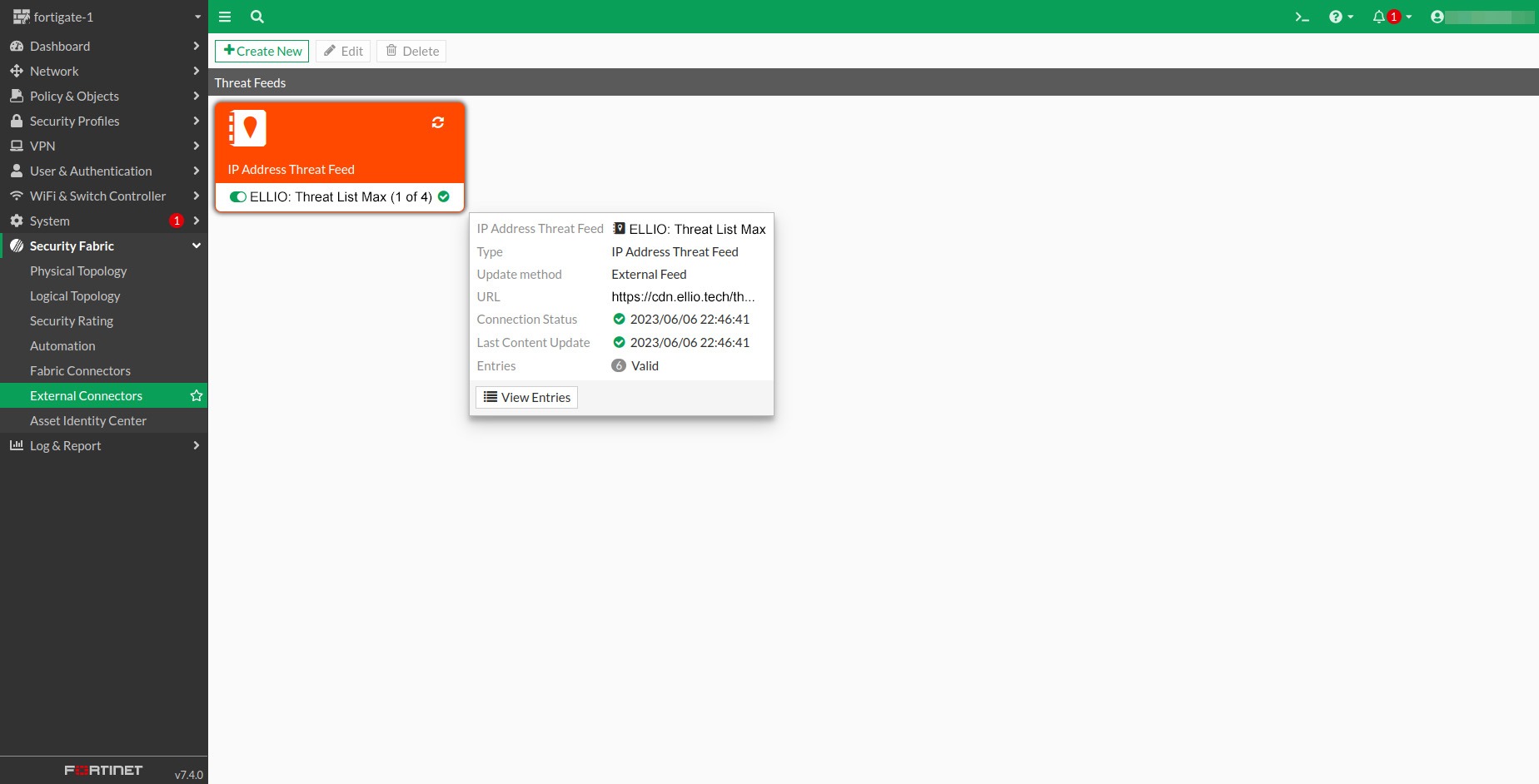
1.4 Once created, wait a few moments for the latest version to download. If you’re as impatient as I am, you can click the Refresh button in the upper right corner. Hovering over the feed box will display an information panel with more details. Once the feed is successfully downloaded, you’ll see the number of entries, latest content update, and more.
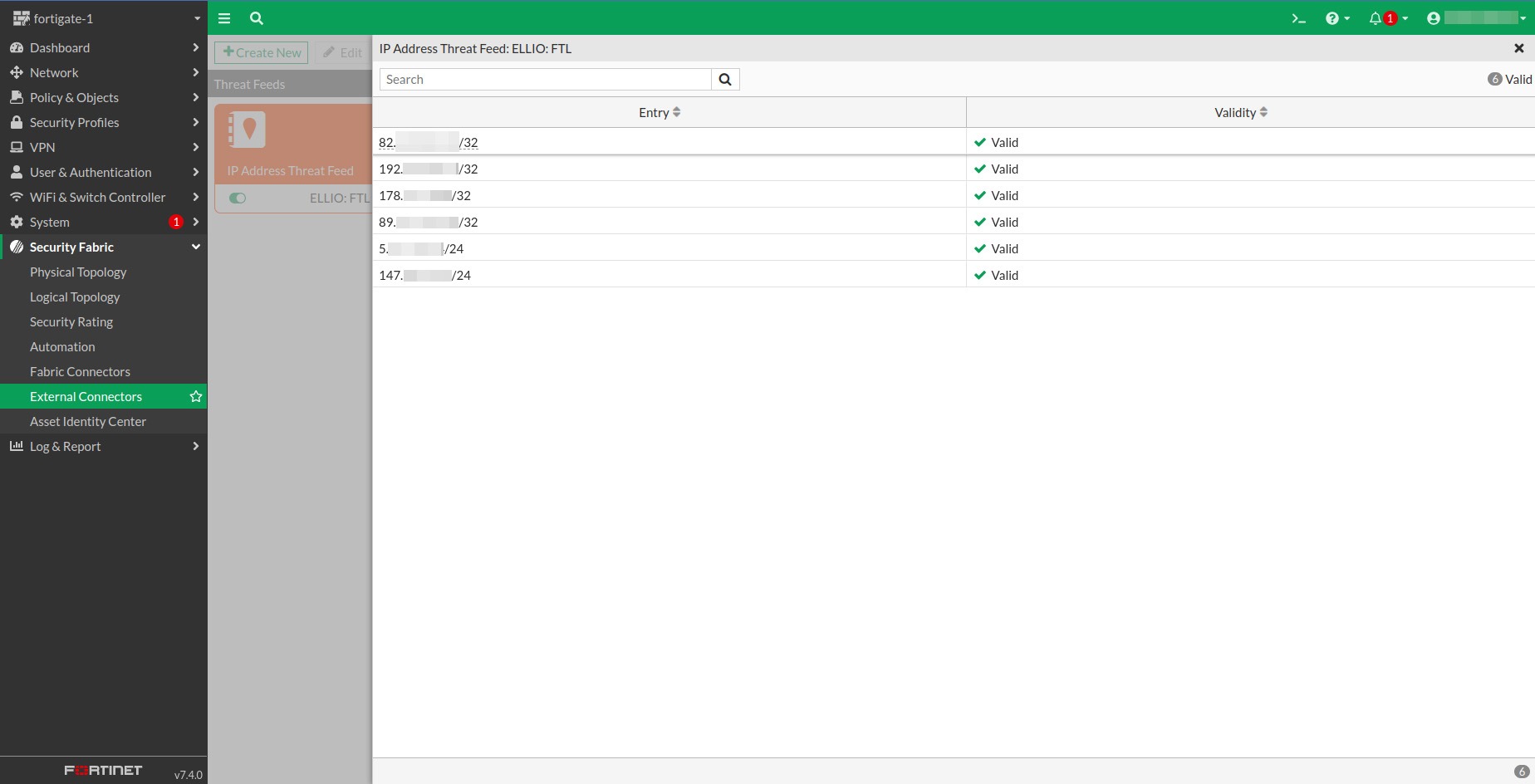
1.5 To view the IP addresses we currently recommend blocking, click View Entries.
2. Setup of Firewall rules
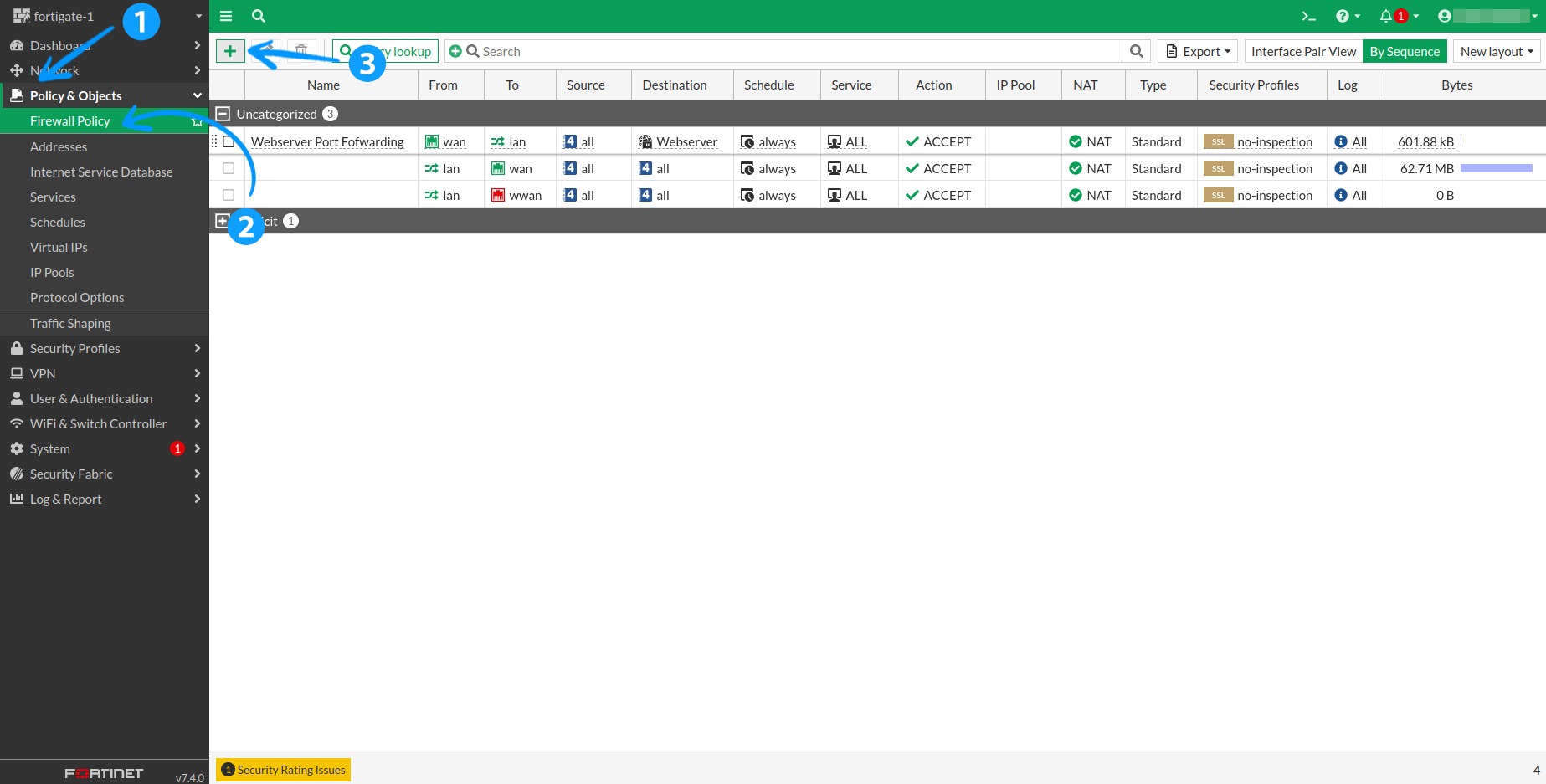
2.1 Once our feed is available in your FortiGate instance, you can create firewall rules based on it. Navigate to Policy & Objects > Firewall Policy and click the green + to create a new rule.
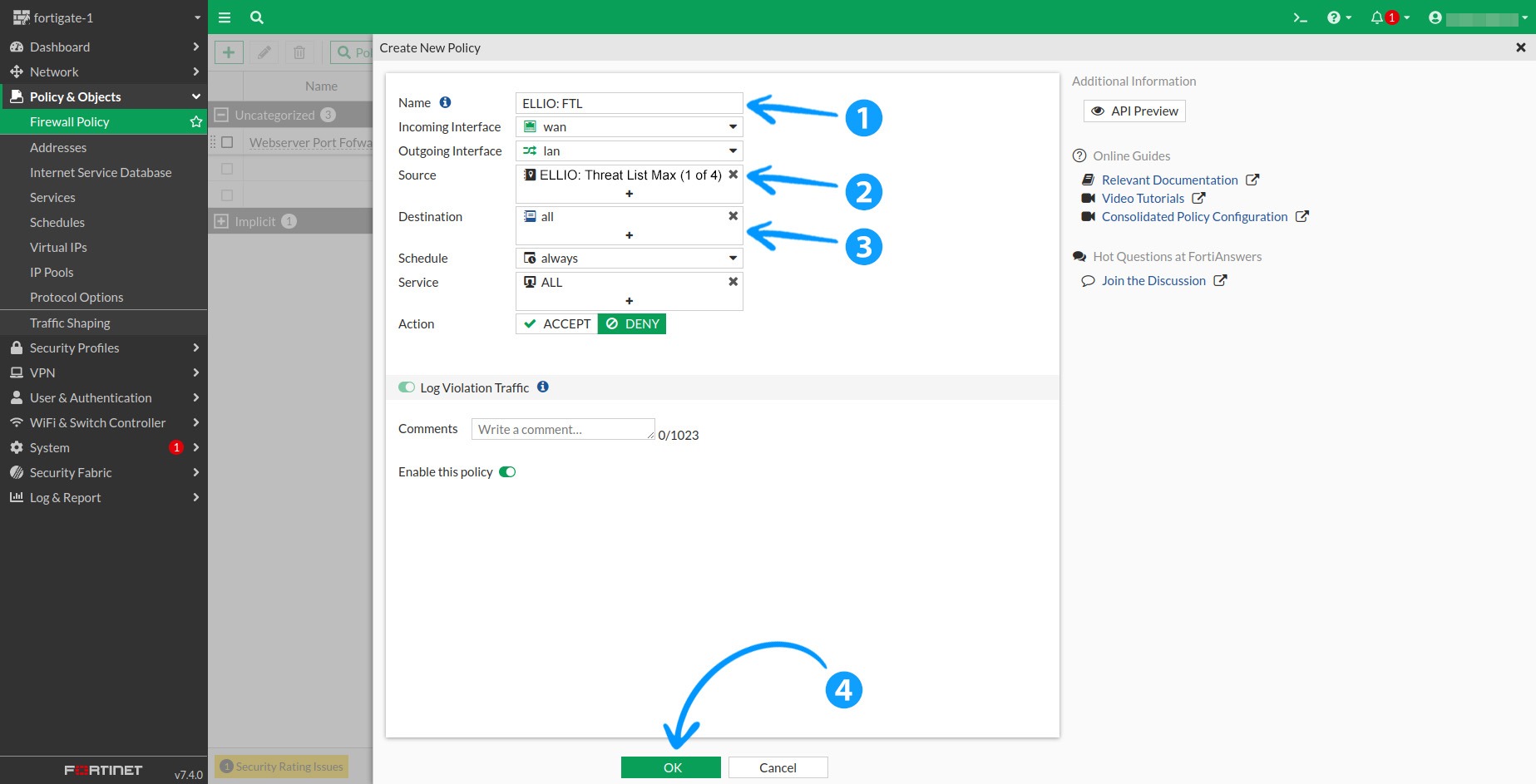
2.2 Fill in the Name field with something easily identifiable, e.g., ELLIO: TL. Set your Incoming Interface to your WAN port and your Outgoing Interface to your LAN interface. If you have multiple interfaces of either type, duplicate this rule for each.
Click the + sign next to Source to display the list of entries, and select the one named during the external feed setup. For Destination, we recommend setting it to All. Keep the Schedule set to Always, select ALL from the list of services, and set the Action to Deny.
Click OK to create the rule.
2.3 Now, rearrange the firewall rules by dragging the newly created rule above the rule that allows access to services. Simply drag and drop it into the desired position.
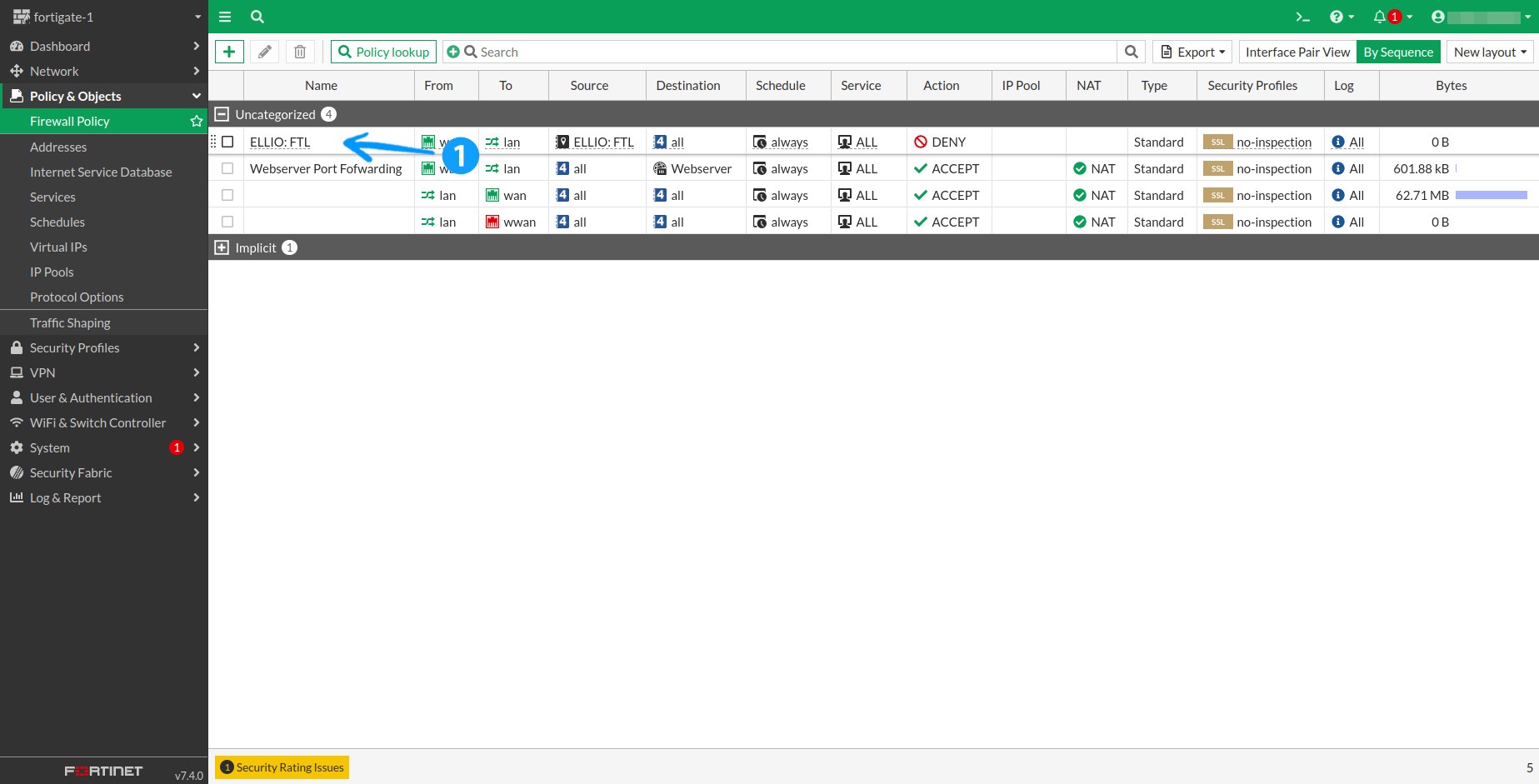
2.4 After a short while, you will see the amount of traffic blocked by our feed.
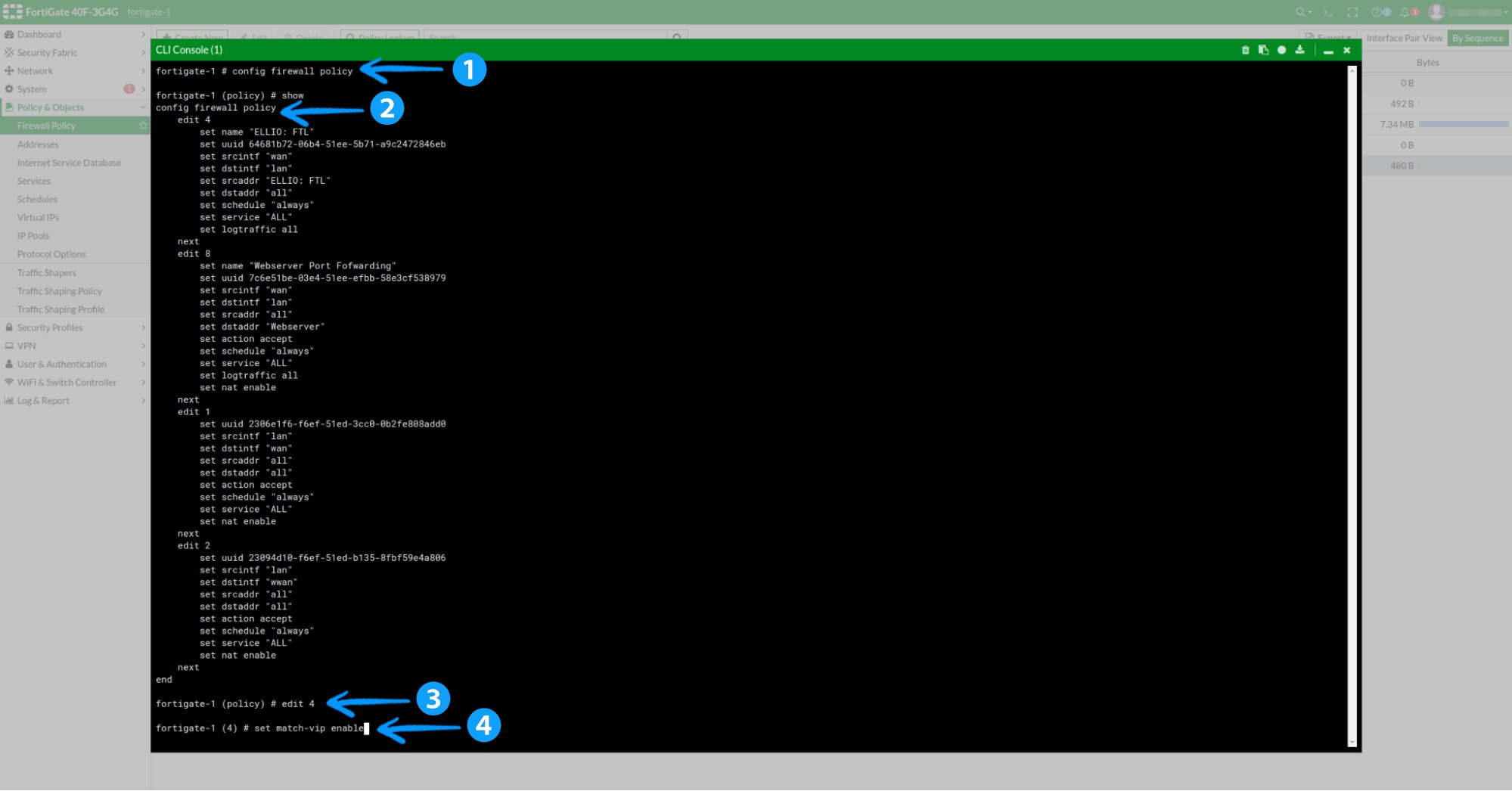
Note 1: If you’re using VIP for port-forwarding or other use cases, you may need to enable the match-vip setting for the firewall rule.
To do this, enter the CLI by clicking the cmd symbol >_ next to the question mark in the upper right corner.
Type config firewall policy to enter config mode, then execute the show command to display all active policies. This will help you find the number of your rule (in the example below, it’s number 4).
Next, run the following commands:
edit 4set match-vip enable
Save it by using end command.
Note 2: FortiGate has a limit of approximately 130,000 IP addresses per external IP feed. You will receive multiple links from us – use all of them to create External Feed objects, and then apply them to your firewall as usual.
Try ELLIO IP blocklists with free trials
Visit ELLIO Blocklist Automation, the trial provides the same protection features as the paid commercial version. Enjoy testing, and share your feedback with us.
Did you find this tutorial helpful?
Did this guide help you set up IP blocking on Fortigate firewall easily? We hope so! Feel free to share it with your friends, colleagues, or community.
About ELLIO
ELLIO is a research-driven cybersecurity lab with a strong focus on mass exploitation and reconnaissance activity. ELLIO delivers IP-based threat intelligence, network fingerprints, and highly dynamic feeds for event prioritization and data enrichment across existing SIEM, SOAR, and other security tools. Beyond intelligence, ELLIO provides ultimate IP blocking for next-gen firewalls, a platform for centrally managing all multi-vendor blocklists and whitelists, and additional services such as network masking against scanners and eBPF-based filters that combine IP intelligence with modern network fingerprints to protect against active malicious and overly curious (promiscuous) traffic.
Enter the ELLIO Threat Platform and see mass exploitation and reconnaissance activity as they happen: https://platform.ellio.tech